So this time we are gonna start up selenium server, but we are gonna start it up as a hub.
On my main computer (PC1), I' just gonna do the same command we done before "java -jar selenium-server-standalone-2.41.0.jar" and this time we are gonna use " -role hub" and this is gonna put this instance in hub mode.

Now there's a couple of other things we can do here. One is setting up a port, doing " -port <port_number>", that will change the port number.
By default that's gonna be 4444. In case you have that in use you can change it.
And you can also specify a configuration file, a JSON file in, as well a couple of other configuration options.
By default that's gonna be 4444. In case you have that in use you can change it.
And you can also specify a configuration file, a JSON file in, as well a couple of other configuration options.
In most cases, this standard configuration works. So we just gonna keep things simple for now and use only "- role hub".

You can see it's lunching selenium grid server. You can tell that you are in grid mode, because it says "grid server" in this case. And you can see it's connected on port 4444.
Now once we have this up, we want to test to make sure this is actually running. So what we are gonna is open a browser and type this address "http://localhost:4444/grid/console".

And you can see it shows a page with "Grid Console", the version number and we can click "view config" to view the configuration here.
And this is the configuration for the hub, and we you'll see the details of the configuration. Some of those settings are pretty basic, like the port number, timeout. All this settings can be modified, but for the most cases the basic configuration is usually gonna work.
Now when we'll have nodes connected, we are gonna return to this console and we'll be able to see those nodes and manage those nodes.
So, let's go ahead and create our first node.
Setting up the first node (PC1 - Windows 8)
We just have to open another command prompt and type "java -jar selenium-server-standalone-2.41.0.jar" but this time we are gonna do " -role node" and then we are gonna do " - hub" and specify where our hub is " http://localhost:4444/grid/register".
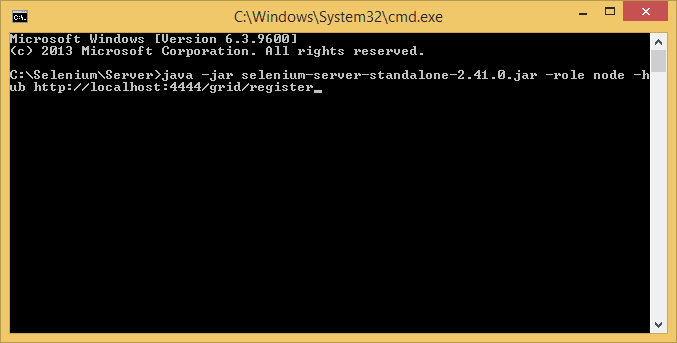
And again here, with the node we can specify some configuration, we can set a different port.
The port by default it's gonna be "5555".
So let's go ahead and run this:

And you can see it's lunching selenium a selenium grid node, and it's actually configured from a JSON object, and will actually send that object to the server. You can see the configuration here. It's registering that node on the grid and it's constantly hitting the grid hub in order to get the status to figure out if it needs to run any test.
So if you look at the console now in "http://localhost:4444/grid/console".

You can see that we've got one Remote Proxy here, and we can see what ip address is listening on. And you can see it supports up to 5 concurrent tests and if you hover over one of the small icons you can see what the configuration is.

In this case the protocol is Selenium, platform is Windows 8, browser name is Firefox and then the max instances is 5.
And you can see we can call Google Chrome on here, 5 instances running at the same time. We can have Internet Explorer with 1 instance. You can also notice we have Remote Control (legacy), this is the old selenium (Selenium 1). So it allows you connect using Web Driver or through the old style selenium RC.
So that's our first node. Now we need to setup our second node.
Setting up the second node (PC2 - Ubunto Linux Virtual Machine)
In this second node, we'll be running a instance of Ubunto (Linux) operating system. To do that, we'll be using Virtual Box. The purpose of this post it's to guide how to setup a distributed testing environment using selenium grid. So we'll skip Ubunto setup and configuration of the virtual machine.
Once the virtual machine is setup with Ubunto and JRE, we go ahead and run a new node on it by running the same exactly process we did for creating the first node. By typing in a terminal windows "java -jar selenium-server-standalone-2.41.0.jar -role node -hub http://172.16.0.45:4444/grid/server".

Notice that the ip address changed because we are not using localhost anymore. Instead we are pointing our new node to the first machine (PC1) which is ip address is 172.16.0.45.

After launching we can see the second node is running in grid mode, same as node 1 in PC1.
And now we can go ahead and refresh our console in PC1 and we can notice we have a second Remote Proxy here. You can see what the address of that proxy is, and then it's on port 5555 running Linux OS.

Now, one thing to notice here also is that you need to make sure that your firewall settings are allowing selenium server to connect through the port here.
So, for example, our hub (PC1) is on port 4444, on the PC2 I had to make sure I had allowed firewall out on PC2 and then in on the machine PC1 allowing connections coming from port 4444.
And if you don't do this, then you'll see it won't connect.
So next, I'm gonna set up an additional node on my Mac.
Setting up the third node (Mac - OS X 10.9.2 Mavericks)
After running the third node on my Mac, and I did exactly the same thing I did on PC2.

I just ran "java -jar selenium-server-standalone-2.41.0.jar -role node -hub http://172.16.0.45:4444/grid/server".
So let's go ahead and refresh this console again in PC1, and now you can see there's a third node there.

So now we are able to run remote test on a Mac as well.
We have just setup a basic configuration.
Next we'll see how to run some tests, just to verify their configuration works.
If you want to do a more advanced configuration, you can go to http://code.google.com/p/selenium/wiki/Grid2
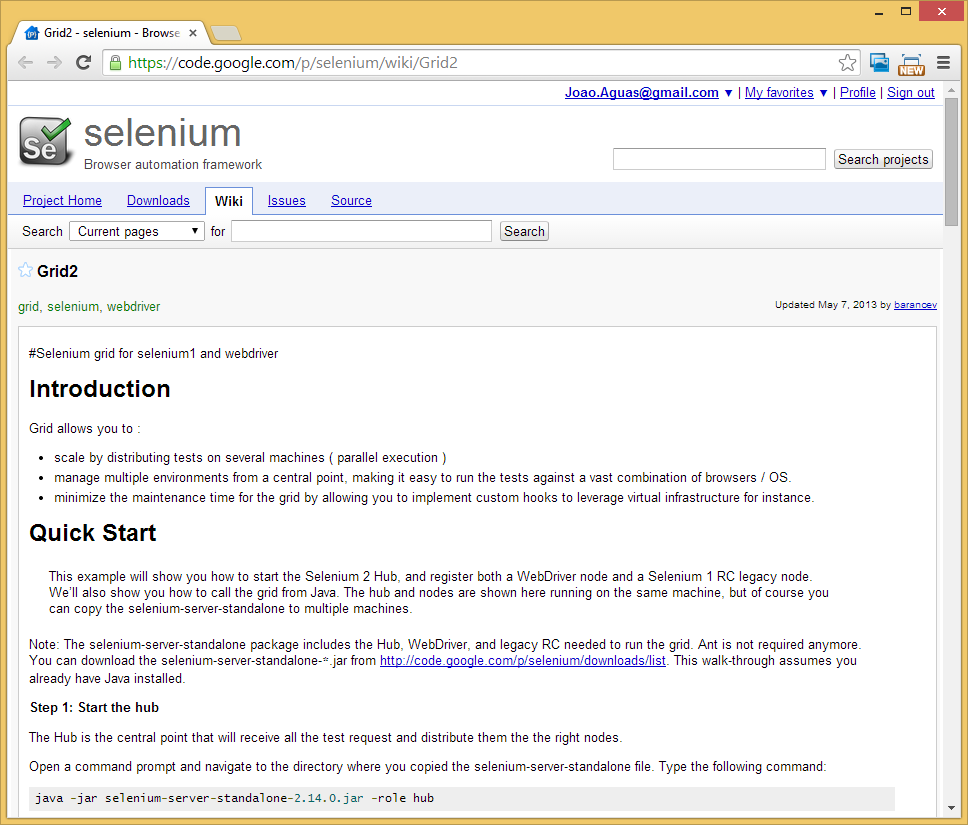
This is basically the Google code page for selenium and inside the wiki there on grid, you can find here some more information. And you can find all the information we have covered, about how to start up selenium server as a node. But also what you'll find here, how to configure nodes by command lines and they give some instructions here how to do that. It tells you what the optional parameters are. And the basic things you might wanna change here are the things like the maxSession parameter, so how many tests can be running simultaneously and the browser type in parameters to maybe test different versions of a browser. You have actually the ability to chose the version number of the browser where you want to test. You just have to specify where that browser is. If you use one other than the current version.
-browser browserName=firefox,version=3.6,firefox_binary=/home/myhomedir/firefox36/firefox,maxInstances=3,platform=LINUX
Another thing you can see how to do here, is to configure your nodes by JSON. And you can do that on the node and hub. You can have some samples of configurations that might be useful.
It's a pretty good way to do the configuration.
So now let's run our first test in our grid to make sure everything is working.
Actually we don't need to make any changes in our test class, since the hub where the nodes are connected are in my local machine.
var driver = new RemoteWebDriver(new Uri("http://localhost:4444/wd/hub"), DesiredCapabilities.Firefox());
Remember you can you different browsers, but you do have to set them up and configure them in which one of the nodes. So you'll have to setup Chrome or IE or whatever you want to use in that hub configuration.
If we look at our grid, we can see we've got three nodes here, and even dough it shows all of this browsers they are not necessarily all available.

For example, on my Mac, I don't have Internet Explorer. But this is just the default. Remember you can change that configuration if you want to, in order to specify what browsers, how many are allowed and where the drivers are located.
If we'll run the tests it as it is, it would pick up a node that can run our tests according to the Desired Capabilities we selected. In this case Firefox. It picked up my local machine PC1 for that.
That was successful, but now let's do something to make sure that we get the Mac version.
What we can do here, is to change the Desirable Capabilities.
So instead of just doing DesiredCapabilities.Firefox() and replace it to new DesiredCapabilities("firefox", "", new Platform(PlatformType.Mac)).
We will not specify the version of Firefox we want leaving the second argument as a empty string. We'll have:
var driver = new RemoteWebDriver(new Uri("http://localhost:4444/wd/hub"), new DesiredCapabilities("firefox", "", new Platform(PlatformType.Mac)));
So we can run this and watch the Mac executing the tests using Firefox.
Final Considerations
I would like to cover a one more point about selenium grid mode.
That point is Parallel Execution. We didn't look at doing Parallel Execution, and that's it because it's really not part of Selenium or the grid framework itself.
It's a little bit confusing to sum when you're expecting that if you use grid, that your tests will just automatically be executed in parallel. And that's not necessarily the case.
You have to do something to make that happen. So, for example, let's say that we wanted to run 10 test cases at a time, and maybe you have a 1000 test cases or so. You would need to, in the way that you run your tests, set up parallel execution. In your test project, perhaps you would spin off threads running your tests and they will all hitting the same hub. And that hub can execute them in parallel.
But doing that, we are actually controlling the parallelization of our tests at the level where we are running them or where the driver of the test is.
But basically you are responsible for parallel executing. The grid makes it possible, but you have to initiate it.


